

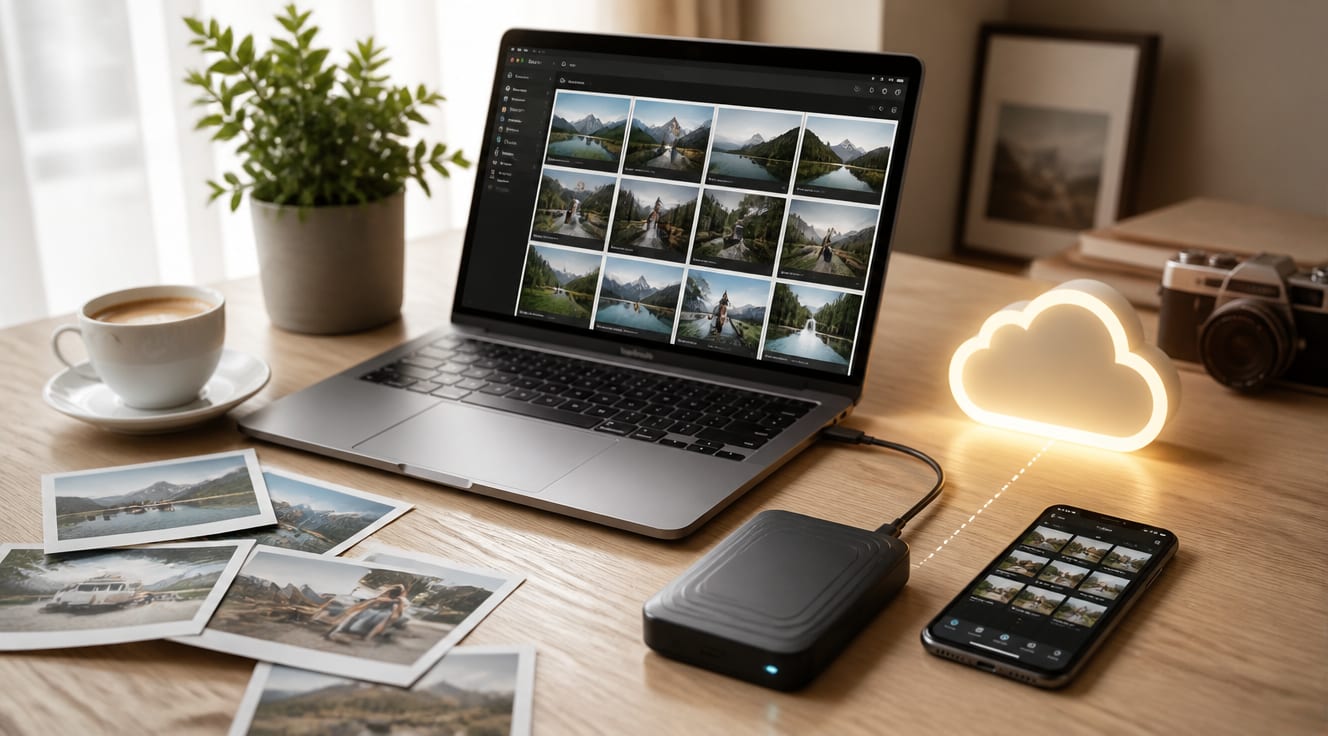
Backing up your photos is the only reliable way to prevent losing irreplaceable memories to hard drive failures, accidental deletions, theft, or ransomware attacks. Every year, roughly 30% of computer users experience data loss, and according to Backblaze’s 2023 drive reliability report, about 1.5% of hard drives fail within their first 18 months of use. A solid photo backup strategy combines local and cloud storage so your images survive any single point of failure, and setting it up takes less than an hour once you know the right steps.
Why You Need a Photo Backup Strategy Before It’s Too Late
Digital photos are among the most emotionally valuable files people own, yet they are often stored on a single device with no copy anywhere else. A 2022 survey by Acronis found that 43% of consumers have lost personal data, and 26% of those losses involved photos and videos that were never recovered. Hardware failure is not a matter of “if” but “when”: Backblaze’s annual study shows that roughly 90% of hard drives survive their first four years, but failure rates climb sharply after that.
Beyond hardware, phones get lost, stolen, or dropped in water. Laptops are stolen every 53 seconds in the US, according to a widely cited Kensington estimate. Cloud accounts get hacked or locked. Without a backup, a single event can erase decades of family history in seconds.
The 3-2-1 Backup Rule: The Gold Standard for Photo Protection
Professional photographers and IT teams rely on the 3-2-1 rule because it eliminates single points of failure. The rule is simple: keep 3 copies of your data, on 2 different types of media, with 1 copy stored offsite.
For personal photos, this typically means:
- Copy 1: The original files on your computer or phone.
- 2 different media types: An external hard drive or NAS at home (local) plus a cloud service (offsite).
- 1 offsite copy: Cloud backup or a drive stored at a family member’s house.
This setup means that even if your house floods, your laptop is stolen, or your cloud provider experiences an outage, at least one intact copy of your photo library still exists.
Cloud Storage vs. Local Storage: Which Is Better for Photo Backup?
Neither option alone is enough. Cloud and local storage solve different problems, and the strongest setups combine both.
| Feature | Cloud Backup (e.g., Backblaze, iDrive) | Cloud Sync (e.g., Google Photos, iCloud) | Local Drive / NAS |
|---|---|---|---|
| Automatic continuous backup | Yes | Yes (new photos only) | Only if scheduled |
| Protection against ransomware | Strong (versioning included) | Weak (sync can overwrite) | Weak (if connected) |
| Speed for restoring large libraries | Slow (depends on internet) | Slow | Very fast |
| Offsite protection | Yes | Yes | No (unless rotated) |
| Monthly cost for 1 TB | $7–$10 | $10–$30 | One-time $50–$150 |
| Best use case | Full-system backup | Quick access across devices | Fast local archive |
The key difference is that true backup services keep historical versions and protect against accidental deletion, while sync services simply mirror what you have. For irreplaceable photos, a true backup is safer.
Best Cloud Backup Services for Photos in 2024
Choosing the right service depends on how many photos you have, your budget, and whether you want versioning. Here are the most reliable options:
- Backblaze Personal – Unlimited backup for $7/month per computer, includes 30-day file versioning, and is widely recommended by photographers.
- iDrive – $59.62/year for 5 TB, supports multiple devices, and includes 30-day versioning.
- Google One – 100 GB starts at $1.99/month, integrates with Google Photos, but is sync-based rather than true backup.
- Amazon Photos – Unlimited photo storage for Prime members ($14.99/month or $139/year), with full-resolution retention.
- iCloud+ – 2 TB for $9.99/month, ideal for Apple users who already use iCloud Photos.
How to Set Up an Automatic Photo Backup System
A reliable photo backup system should run without you thinking about it. Follow these steps to build one in under an hour:
- Audit your current storage. Check how many photos you have and where they live (phone, SD cards, laptop).
- Buy an external drive. A 2 TB portable SSD costs around $100 and gives you a fast local copy.
- Enable phone auto-upload. Turn on iCloud Photos, Google Photos backup, or your camera app’s cloud sync.
- Install a true backup client. Set up Backblaze or iDrive on your main computer to back up your full photo library continuously.
- Schedule a weekly verification. Once a week, open one random photo from each backup location to confirm files are intact and readable.
- Test a full restore once a year. Download a sample of files from the cloud to confirm the restore process actually works.
Real-World Example: Recovering 12 Years of Family Photos
In 2023, a user named Mark from Ohio shared on the Backblaze blog how a ransomware attack encrypted his home computer, including 12 years of family photos stored only on a single external drive that was connected at the time. Because he had also subscribed to Backblaze, he was able to wipe his machine, reinstall everything, and restore his full photo library from the cloud within two days. Without that offsite backup, the photos would have been permanently lost.
Common Photo Backup Mistakes You Should Avoid
Even people who think they have a backup often make critical errors. Watch out for these pitfalls:
- Relying on a single cloud sync service. If you delete a photo on your phone, it disappears from the cloud too.
- Keeping the external drive plugged in all the time. A power surge or ransomware infection can destroy both copies simultaneously.
- Using the same password for cloud and email. A compromised email account can lead to a wiped cloud backup.
- Ignoring SD cards and old drives. Photos on memory cards are not backed up until you copy them somewhere safe.
- Never testing the restore. A backup you have never restored from may be silently broken.
How to Apply This Starting Today
You do not need a perfect setup to protect your photos; you need a working one. Start with these three actions before the end of the day:
- Turn on automatic cloud upload on your phone right now (iCloud Photos, Google Photos, or Amazon Photos).
- Order an external hard drive if you do not already own one, and copy your full photo library to it once it arrives.
- Sign up for a true backup service like Backblaze or iDrive so you have an offsite copy that protects against ransomware and theft.
Within a week, you will have a 3-2-1 backup system that costs less than a coffee per month and guarantees your photos survive anything short of a global catastrophe.
Întrebări frecvente
How often should I back up my photos?
If you use a continuous backup service like Backblaze or iDrive, your photos are protected in near real-time. For manual backups to an external drive, schedule a weekly or monthly copy depending on how often you shoot. Phone users should enable automatic cloud upload so every new photo is backed up the moment it is taken.
Is cloud backup safe for personal photos?
Yes, reputable cloud backup providers encrypt your files both in transit and at rest using AES-256 encryption, and many offer private encryption keys so even the provider cannot read your photos. For maximum privacy, enable two-factor authentication and choose a strong, unique password.
What’s the cheapest way to back up photos?
The most affordable combination is Google Photos (free up to 15 GB) plus a single external hard drive costing $50–$100. This gives you both an offsite and a local copy for a one-time hardware cost, with no monthly fees until you exceed the free cloud tier.
Can I back up photos from my phone automatically?
Absolutely. iPhone users can enable iCloud Photos, and Android users can turn on Google Photos backup. Both options upload new photos over Wi-Fi automatically, so your library stays protected even if you lose your phone the next day.
How long do cloud backup services keep my photos?
Services like Backblaze and iDrive keep your files indefinitely as long as your subscription is active. If you cancel, most providers give you 30 days to download your data before it is deleted. Always check the retention policy before choosing a provider.