


Understanding Laptop Heat
Importance of Monitoring Laptop Temperature
Monitoring laptop temperature is crucial for maintaining performance and longevity. Many users may underestimate the impact of heat on their devices until they experience issues such as unexpected shutdowns, sluggish performance, or even hardware failures. Just like how a car’s engine needs to be kept cool to run smoothly, laptops also require temperature regulation.
For instance, a colleague recently faced constant crashes during video editing sessions because their laptop overheated. After monitoring the temperature and realizing it consistently exceeded safe levels, they decided to take action, leading to improved performance and reliability.
Regular checks can prevent these headaches:
- Ensure optimal performance
- Prolong the life of components
- Reduce the risk of damage
Factors Affecting Laptop Heat Levels
Several factors contribute to how hot a laptop gets. Key elements include:
- Ambient Temperature: High surrounding temperatures can lead to increased internal heat.
- Workload: Running resource-intensive applications increases CPU and GPU usage, which generates more heat.
- Ventilation: Poor airflow caused by blocked vents or insufficient space can trap heat.
By understanding these factors, users can better manage their laptop’s temperature and avoid overheating problems in the future.
Normal Operating Temperature Range
Typical Operating Temperature Range for Laptops
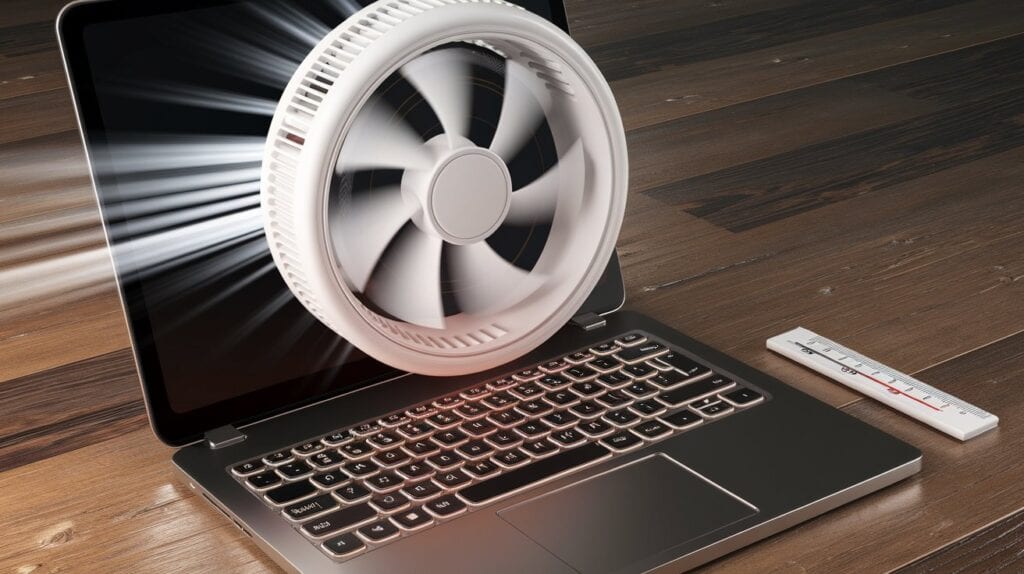
Understanding the normal operating temperature range for laptops is essential for effective heat management. Generally, most laptops operate efficiently between 30°C and 70°C (86°F to 158°F). It’s no surprise that each laptop brand and model may have slight variations, but sticking to this temperature range helps ensure optimal performance.
Many users, like a friend of mine who loves gaming, often push their laptops to the limit without knowing the risk. They learned the hard way that keeping their laptop’s temperature below 80°C during demanding gaming sessions was crucial.
Ideal Temperature for Laptop Components
Let’s delve deeper into the ideal temperatures for specific laptop components:
- CPU: Ideal operation typically ranges from 45°C to 75°C.
- GPU: Many graphics cards function well at 60°C to 85°C.
- HDD/SSD: These should ideally remain below 50°C.
Keeping these components within their ideal temperature ranges not only helps maintain performance but also extends the lifespan of your device. Regular monitoring can ultimately save you from costly repairs or replacements down the line.
Signs of Overheating

Common Symptoms of Laptop Overheating
Recognizing the signs of overheating in a laptop is essential for taking timely action. Some common symptoms include:
- Increased Fan Noise: If the laptop fans are running louder and more frequently, it’s a clear indication that they are working overtime to cool down the device.
- Sluggish Performance: Experiencing lag during tasks, like opening files or running applications, may suggest excessive heat is affecting processing speed.
- Random Shutdowns: If your laptop shuts down unexpectedly, it’s likely triggered by overheating to protect the hardware.
A friend of mine once ignored these symptoms until their laptop started freezing during important video calls — a frustrating experience!
Potential Risks Associated with Excessive Heat
Ignoring overheating can lead to serious risks, including:
- Hardware Damage: Prolonged exposure to high temperatures can warp components or cause hard drives to fail.
- Data Loss: An overheated laptop can lead to unexpected shutdowns, risking unsaved work and files.
- Reduced Lifespan: Frequent overheating can shorten the overall lifespan of your laptop.
Being aware of these signs and risks helps maintain the health of your device and ensures a smoother computing experience.
Managing Laptop Heat
Tips for Improving Laptop Cooling
Managing laptop heat is crucial for maintaining its performance and longevity. Here are some effective tips for improving cooling:
- Use a Flat Surface: Always place your laptop on a hard, flat surface. Using it on soft surfaces like beds or couches can block airflow.
- Clean Air Vents: Regularly check for dust accumulation in the air vents. A quick cleaning can significantly enhance airflow.
- Avoid Overloading: Run only the necessary applications. Limiting background processes reduces CPU usage and heat production.
A colleague recently began implementing these tips, and noticed a marked improvement in their laptop’s performance during long working hours.
Cooling Accessories for Laptops
Investing in cooling accessories can also make a significant difference. Consider the following:
- Cooling Pads: They typically have built-in fans that boost airflow and keep your laptop cool.
- External Fans: These can be positioned to direct additional airflow toward the device.
- Laptop Stands: Elevating your laptop can improve ventilation underneath.
Adopting these strategies helps ensure your laptop runs efficiently, preventing overheating and potential damage in the long run.
Monitoring and Maintenance
Tools for Monitoring Laptop Temperature
Monitoring your laptop’s temperature is vital for effective heat management, and several tools can help users keep an eye on their device’s performance.
- HWMonitor: This straightforward software provides real-time temperature readings for various components, including CPU and GPU.
- Core Temp: A user-friendly option focused specifically on CPU temperature, offering insights into how your processor is performing under load.
- Speccy: This tool not only monitors temperatures but also gives a detailed rundown of other hardware specifications.
When a friend started using these tools, they were surprised to see how often their laptop temperature spiked during casual web browsing!
Maintenance Practices to Prevent Overheating
In addition to monitoring, regular maintenance is essential:
- Dust Cleaning: Periodic cleaning of vents and fans ensures proper airflow.
- Software Updates: Keeping your operating system and drivers updated helps optimize performance and efficiency.
- Thermal Paste Replacement: For advanced users, replacing the thermal paste on the CPU can significantly improve heat transfer and cooling.
Implementing these practices not only keeps the laptop cool but also fosters a smoother and more reliable user experience over time.
Summary of Heat Management Strategies
Managing laptop heat is not just about maintaining performance; it also extends the life of your device. Throughout this guide, we’ve discussed several effective heat management strategies, including:
- Monitoring Tools: Utilizing software like HWMonitor or Core Temp to keep track of your laptop’s temperature.
- Cooling Techniques: Ensuring proper airflow and using cooling pads.
- Regular Maintenance: Cleaning dust and updating software as preventive measures.
For example, a friend who diligently followed these practices saw their laptop run smoother and with fewer interruptions.
Importance of Regularly Checking Laptop Heat
Regularly checking your laptop’s heat is crucial. Just like routine car maintenance can prevent breakdowns, being proactive about your laptop’s temperature can prevent overheating issues before they escalate. It empowers users to take action, whether through cleaning, upgrading cooling solutions, or adjusting usage habits.
In the long run, prioritizing heat management not only enhances performance but also gives peace of mind, ensuring your laptop remains a reliable tool for both work and play. Remember, a cooler laptop is a happier laptop!